ICS FORM 1
Information
Information and Computer Studies Form 1
 Study Notes
 Discuss
 Bookmarks
The meaning of Data
Define Data
Data and information are used interchangeably but they are quite different.
Consider this example: when a student is admitted at school he/she fills a form with details such as parents names, date of birth, place of domicile , address ,phone number and so on, those details are referred as data. When such data are used by the school authority then the school get the information about a particular student.
Data can be defined as facts about something that can be used in calculating, reasoning or planning.
Data (Input) is a collection of unprocessed items, which can include text, numbers, images, audio, and video which are later processed into information
Information conveys meaning to users , it is also known as processed data (output)
Data is any collection of numbers, characters or other symbols that has been coded into a format that can be input into a computer and processed.
Data on its own has no meaning or context.
It is only after processing by a computer that data takes on a context and becomes information.
Therefore information is an organized data which give meaningful sentence or statement.
Relationship of Data and Information
Relate Data and Information
Data and Information are closely interrelated to each other.
SIMILARITIES BETWEEN DATA AND INFORMATION
- Both data and Information can be presented in alphabets
- Both data and information can be Presented in numerals
- Both data and Information can be presented in symbols
DIFFERENCES BETWEEN DATA AND INFORMATION
| DATA | INFORMATION |
| i) data is a row fact which is unprocessed. | i) information is data that has been processed |
| ii) data is the lower level of knowledge | ii) Information is the second level of knowledge |
| iii) observation and recording are done to obtain data | iii) Analysis is done to obtain information |
The sources of Information
Identify sources of Information
What is the source of information?
An information source is a person, thing, or place from which information comes, arises, or is obtained. That source might then inform a person about something or provide knowledge about it. Information sources are divided into separate distinct categories, primary, secondary, tertiary, and so on.In simple words source of information means the origination of the message.
A) PRIMARY SOURCES OF INFORMATION
- Primary source of information allow learners to access original and unedited information. Primary source requires the learner to interact with the sources and extract information.
- Examples: personal interview, E-mail, discussion, debate, meeting, survey, observation etc.
B) SECONDARY SOURCES
- Secondary sources are edited primary sources, second hand versions. They represent someone else's thinking.
- Example Books, Encyclopedia, DVD's magazines, news paper, video tape, audiotape, TV, internet, website.etc.
C) TERTIARY SOURCES
- These sources are intermediate between primary and secondary sources .
- Example someone may read a news paper and pass the information to others through various means.
The importance of Information
State the importance of Information
Computers were originally used by scientists for calculating numbers, and have gradually become useful in offices and industries. In recent times, simplified models that can be used by almost everybody have become common in schools and homes for accomplishing many varied tasks and applications.
Lists the uses that computers are now commonly put to: writing letters, and reports, printing books, newspapers, and magazines, drawing pictures and diagrams, doing statistics, mathematics and handling financial records, controlling traffic lights, flying aeroplanes, making and playing music and video, sending messages anywhere in the world.
Internet The Internet is a global collection of many types of computers and computer networks that are linked together. It is increasingly becoming the solution to many information, problems, information exchange, and marketing describes the Internet as a mixture of many services with the two most commonly used being electronic mail (e-mail for short) and the World Wide Web (www). It plays a significant role in education, health, political processes, agriculture, economy, businesses and newsgroups.
With Internet connectivity, one can do business all over the world without physical contact with the buyer or the need for a business intermediary. E-mail Electronic mail (e-mail) is the exchange of text messages and computer files transmitted via communications networks such as the Internet .
The e-mail system as the equivalent of postal mailing services, with the biggest difference being the time and cost involved. And not only written data, but all sorts of information in the form of video, audio, or photographs, can be sent via e-mail.
E-mail as an increasing popular method of communication, especially in the workplace. Mobile phones is a telephone system that can move or be moved easily and quickly from place to place. Mobile phones were once the tool of rich and busy executives who could afford both the luxury. Mobile phones are now the ICT that is reshaping and revolutionizing the communications globally. Its impact on the economic activities of nations, businesses, and small entrepreneurs is phenomenal.
The availability of this new technology has been reshaping the material basis of the society as well as bringing about a profound restructuring of economic, political, and cultural relations among states.
In summary information is important because:
- It creates awareness.
- It educates people.
- It alerts people when there is danger.
- Information gives instructions.
- Information helps in decision making.
- Information can be used in advertising goods.
WAYS OF DISSEMINATING INFORMATION
- i) Traditional Ways
- ii) Modern Ways.
Information dissemination is the process of spreading or distributing information using various ways from one individual to another. or Information dissemination is the process of making the information known to the general public.
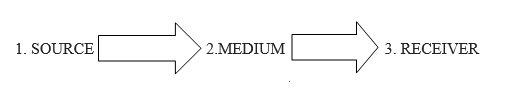
- SOURCE: This is the origin of the message. the source can be direct or indirect
- MEDIUM : This is the means or channel of spreading information such as newspaper , signs, magazines radio television telephone internet etc.
- RECEIVER : These are the intended audience to receive the message or information.
Traditional ways of disseminating Information
List the traditional ways of disseminating information
Uses traditional tools to spread information example songs, drums, poems whistle.
The modern ways of disseminating Information
List the Modern ways of disseminating Information
Uses modern tools to spread information example Internet, TV, Radio stations, magazines, posters, burners, fliers, websites, Social media like WhatsApp, Facebook, tango, immo, Instagram, tweeter etc.
The comparison of modern and traditional ways of disseminating Information
Compare modern and traditional ways of disseminating Information
THE DIFFERENCES BETWEEN TRADIONAL AND MODERN WAYS
| TRADIONAL WAYS | MODERN WAYS |
| Slow in disseminating information | Quick and faster to disseminate information |
| Most of them are manually operated | They are electrically equipped |
| Message can be sent within short distance | They can cover a great distance |
| The information reaches few people | so many people can get information at a time. |
| The cost of sending the message is too high | The cost of sending message is very low |
Contrast modern and traditional ways of disseminating information
Contrast modern and traditional ways of disseminating information
THE DIFFERENCES BETWEEN TRADITIONAL AND MODERN WAYS
| TRADITIONAL WAYS | MODERN WAYS |
| Slow in disseminating information | Quick and faster to disseminate information |
| Most of them are manually operated | They are electrically equipped |
| Message can be sent within short distance | They can cover a great distance |
| The cost of sending the message is too high | The cost of sending message is very low |
| The information reaches few people | Many people can get information at a time. |
The Computer
Information and Computer Studies Form 1
The Computer
Define a computer
A computer can be defined in several ways but the best definition of a computer should contain main terms like INPUT, PROCESS, STORAGE and OUTPUT.
The following are various definitions of the computer
A Computer is:
- An electronic machine that processes raw data to produce information
- Is an electronic device that receives or accept input[data] processes it and then produces output or information
- Is a machine programmed to accept data process it into useful information [output]
- Is an electronic devices that works under the control of stored program, automatically accepting and processing data to produce information.
- Is an electronic machine that accept data from an input device performs arithmetic and logical operation according to predefined programs and finally transfer the processed data to any output devices.
Input is the unprocessed data which enters the computer.
Output is the processed data from computer.
Storage the computer holds data internally during and after processing.
Processing this is the process of converting input(data) into output (information).
Summarizing the basic function of computer we have:

Characteristics of computer
- Speed: computer works in speed.
- Accuracy: computer never makes errors..Errors are made by human being who use the computer.
- Storage: computer has memory for keeping data.
- Versatility:a computer can perform job logically and step by step.
The need for the computer
Explain the need for the computer
Computer has many applications in real life.
COMPUTERS IN EDUCATION
- Gathering information from internet.
- Developing science projects.
- Teaching projects and learning process.
COMPUTER IN HEALTH
- In health computer can be used for Diagnosing illness.
- Modifying parent health development.
- Assisting surgeons.
COMPUTERS AT HOME
- Writing letters.
- Listening music
- Playing games
- Watching movie
COMPUTERS IN LAW ENFORCEMENT
- Store information.
- Making documents and printing documents.
- DNA and finger printing.
COMPUTERS IN MUSIC INDUSTRY
- Composing music.
- Editing sound
- Editing videos
COMPUTERS IN TRANSPORTATION
- It can be used for traffic control
- It can be used in driving stimulator
- It can be used for reservation systems
- Computers are embedded in air craft to provide efficiency in flying
COMPUTERS IN GOVERNMENT
- It can be used for internal revenue service's i.e. to provide reports for tax purposes.
- It can be used for planning, analysis, forecast, sampling, predictions etc.
- It can be used for weather forecasting.
- It can be used for law enforcement.
COMPUTERS IN MILITARY
- It can be used for planning and decision making.
- It can be used by planners to stimulate wars.
- It can be used to guide modern weapons such as missals and field artillery
COMPUTERS IN BANKING AND BUSINESS
- To allow banks clerks and customers to find out bank balance in an account.
- To help bank clerks to record money paid in and out.
- To check computer sensitive cheques.
- To do reservation system for air line travel by checking if there is free seat on a flight.
- To help retailers to check out stock at a super market.
- To allow people to use Automatic Teller Machine in cash withdrawal and transfer funds between accounts.
- To keep track of current prices of market stocks , bonds and currency.
- To create an effective way of producing document example reports, brochures, cards etc.
COMPUTERS IN INDUSTRY AND ENGINEERING
- To design drawing for products using computer aided design (CAD) programs example airplanes , bridges, buildings etc
- To manufacture products using computer aided manufacturing (CAM)
- To plan and control major projects.
- To stimulate or predict what will happen in real life situations from a model situation example turning on/off traffic lights
- To control some operations in automobiles example mixing of fuel and air entering the engine.
- A new technology called artificial intelligence can solve problems in areas like medicine ,law etc.
Hardware is a collection of physical components which form a complete computer system OR Hardware is the actual machinery that makes up the computer system OR Hardware is the set of all physical parts of the computer.
Different parts of a computer
Identify different parts of a computer
TYPES OF COMPUTER HARDWARE
The computer hardware is composed of the following elements:
- Input devices OR Input Hardware example keyboard, scanner, touch screen, joystick, mouse.
- Central Processing unit (CPU) OR Processing Hardware example control units, main memory.
- Output Devices OR Output Hardware example printers, monitor, plotter, speakers
- Secondary Storage Devices OR Storage Hardware example Hard disk, floppy disk, CD, RAM, DVD
- Communication devices OR Communication Hardware example modem, CRT, terminals.
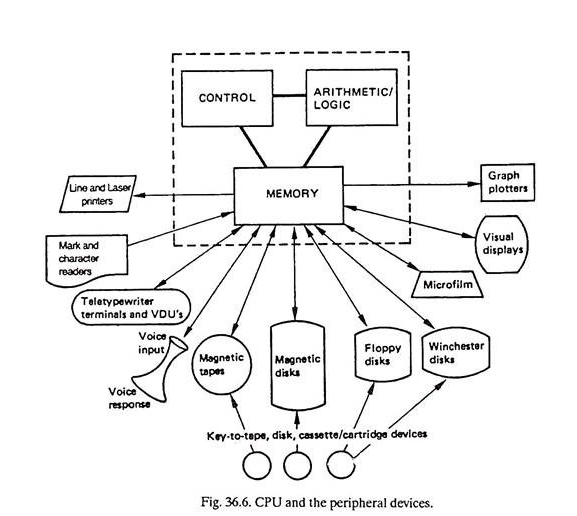
PERIPHERAL DEVICES / HARDWARE
- A peripheral device is a device that located outside the CPU but controlled by it.
- It is an attachment to a computer used to feed unprocessed data into the computer and receive the output of processed information.
CATEGORIES OF PERIPHERALS
- Input devices
- Output devices
- Input/output devices
- Storage devices
- Communication devices
A DIAGRAM SHOWING PERIPHERAL DEVICES
The inputs, processing and output (IPO) as a method of computer operation.
Explain the input, processing and output (IPO) as a method of computer operation.
The computer block diagram
Draw a computer block diagram
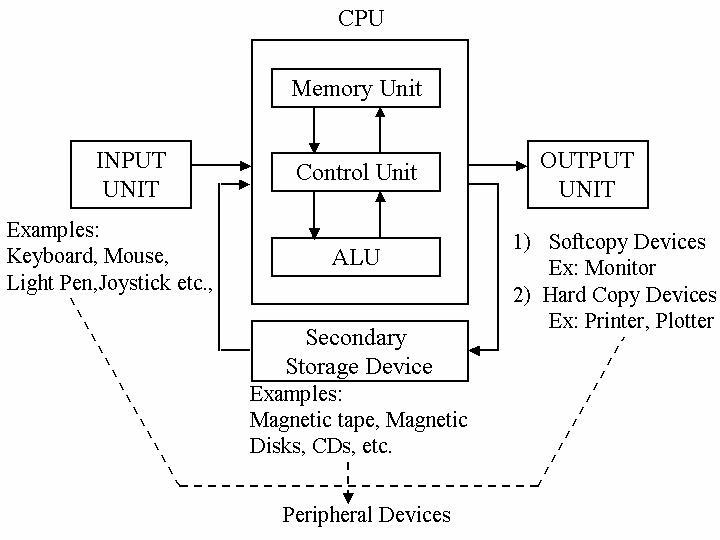
COMPUTER BLOCK DIAGRAM
An input is a means to get data into a computer system OR input is the data that is put in the computer system for processing
Common computer input devices
List common computer input devices
TYPES OF INPUT
- DATA : the row facts
- PROGRAMS: a series of instructions that tells the computer how to perform tasks
- COMMANDS: These are instructions given to a computer program
- USER RESPONSE: is an instruction you issue to the computer by replying to question posed by a computer program. example do you want to save?
The function of input devices
Explain the function of input devices
FUNCTIONS OF INPUT DEVICES
- To accept data from the user into the computer system
- To accept instructions from the users
- To accept commands for running or aborting/halting a program from the user.
The input devices to the system unit
Connect the input devices to the system unit
Central processing Unit
Explain central Processing Unit
The CPU is called the processor and it is basically the brain of the computer. CPU is the part of the computer system that follows the instructions to manipulate data into information.
Sections of CPU
Describe sections of CPU
COMPONENTS OF THE CPU
- The CPU has two main parts. these are:
- (i)The Arithmetic -logic unit (ALU): It performs mathematical operations ( +,-,x, )
- (ii)The Control Unit (CU)
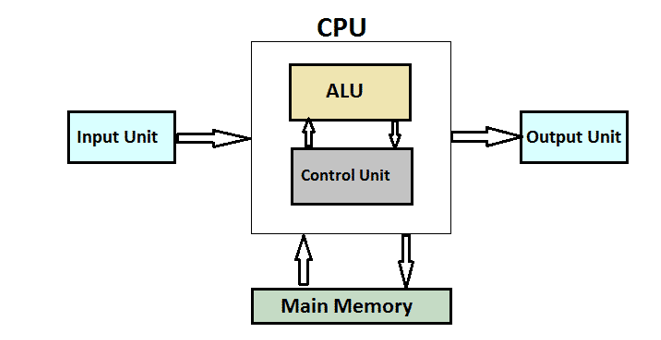
BLOCK DIAGRAM OF THE CPU
The functions of different parts of CPU
List the functions of different parts of CPU
FUNCTIONS OF THE CPU
- To control the sequence of operations according to instructions
- To give commands to all other parts of the computer system.
- To carry out processing data into information.
- To send processed results to the output.
- To store data and all the instructions
The Computer
Information and Computer Studies Form 1
Output devices
List output devices
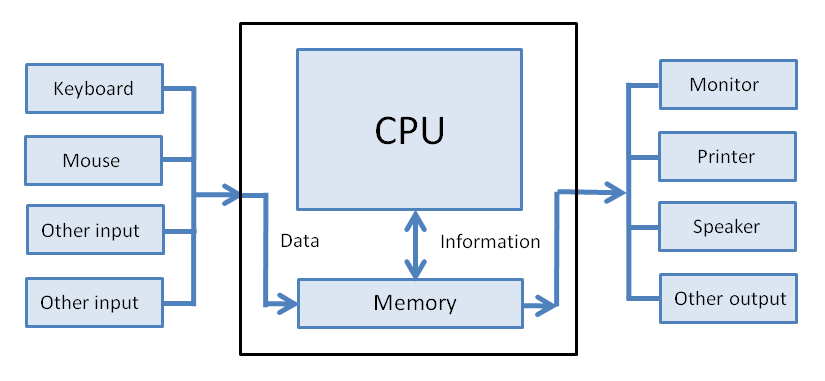
Computer output devices are used to provide information for a user in different forms. The formats include visual, audio and digital. A CPU is responsible for processing the instructions and the devices are responsible in outputting the processed information in different formats depending on the type of output device we have.
When we talk about output devices, some of the devices in this group can do both the input and the output process. These kinds of devices enable us to provide information to it and receive information from it. Touch screen is an example of input/output device.
For example, Mobiles and touch monitors incorporate this technology. Here are the most common computer output devices.
Monitor
Computer monitor or screen is a device used to display information to a user. Whether you are playing a game or watching movies or doing other tasks, the result is shown on screen.
Speaker
- Computer speaker is the other output device which is used to hear a sound played by a computer. Speakers can be built in with the motherboard or comes as a separate part. It connects with the computer speaker with a cable.
- Unlike the old speaker’s types, modern speakers come with USB connection which does both functions – connection and power supply. The built in speakers can be heard through a headphone, if you don’t want to buy the independent speaker set.
- Headphone is also an output device used to hear music from digital portable players, such as MP3 players, IPods and stuff like that. It is designed to fit into an ear. It is also used mostly to play computer games and chat online.
Printer
- Printer enables us to get computer output on paper. It is one of the most popular computer output devices we often use to get information on paper - called hard copy.
The functions of output devices
Explain the functions of output devices
List of Output Devices and Their uses or Functions:
- Monitor (LED, LCD, CRT etc): A display is must need output device on a computer. It is used to display the data or information.
- Speaker(s): A speaker is used to output the audio from the computer.
- Plotters: Plotters is one kind of printer which is used to print vectors graphics. It uses a pen, pencil, marker, or another writing tool instead of toner.
- Projector: A projector is used to display the data or information on another screen rather than a monitor. It helps to perform the presentation perfectly.
- LCD Projection Panels: It works as like the projector. It is used to display the digital data, information or video into the bigger screen. You can call it the updated technology of the projector.
- Computer Output Microfilm (COM): Computer Output Microfilm is the invention to store the data. It converts the data from the computer into a microfilm. It is used in the archives.
- Printers (all types): Printers are the output equipment which helps to make the image, text or graphics into the human-readable form on paper
- Head Phone: Head Phone is the hearing devices which converts the digital signal into the human-readable format.
- Visual Display Unit: It helps to display the digital data, graphics or information. Simply, the monitor is used mostly to give the example of VDU. Though it is all type visual display devices including projector or LCD projection panels.
- Film Recorder: Film Recorder is the computer output devices which helps to convert the digital images into the photographic film.
- Microfiche: Microfiche is mainly used to reproduce the documents or data for storing or reading. It is used to make the archive, newspaper industry or library.
Connect output devices to the system unit
Connect output devices to the system unit
Example 1
The Computer
Information and Computer Studies Form 1
Secondary storage devices
Define secondary storage devices
A storage medium is a physical material on which items (data, instructions and information) are kept for future uses
Examples of secondary storage devices are:
- Floppy disk, magnetic diskette
- Magnetic disk or hard disk
- Magnetic tape
- Optical disks like CD, CD-ROM, DVD. DVD-ROM. DVD-RAM ETC
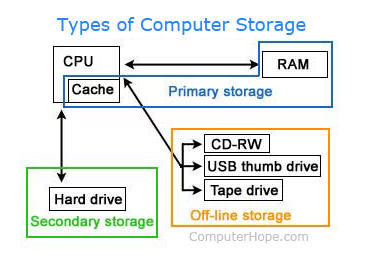
CHARACTERISTICS OF SECONDARY STORAGE DEVICES
The following are the characteristics of secondary storage devices:
- They are less expensive
- They are not part of the CPU
- They have larger storage capacity
- They are non-volatile
- They are permanent
List of secondary storage devices
List secondary storage devices
Secondary Storage Devices are essential as the size of Primary storage or main memory in every computer is limited. With this, the computer can only accommodate a limited sized program and data. To carry out big jobs like commercial data processing, it becomes essential that data be held in some expansive form of storage. This is achieved through secondary storage Devices. It is also called as external storage, and can hold data either sequentially or at random. You should always keep in in mind that data in secondary storage devices is not directly accessible and has to be routed through the main storage for processing.
Types of Secondary storage Devices in Computers are:
- Magnetic tape
- Magnetic disk and
- Magnetic drum.
Magnetic tape:
Tapes are used for recording and storing data for computer processing. It is plastic reel similar to long lengths of movie film. A tape is usually ½” wide and 2400 feet in length and it is coated with particles of ferric oxide on which data can be recorded magnetically.
Magnetic disk:
- Magnetic disk is another type of secondary storage device known as random (direct) access as it permits direct accessing of data. An individual disk is a circular metal plate coated on both side by ferrous oxide material.
Magnetic drum:
- It is a metallic cylinder coated with a special magnetic alloy.
- Data is stored in this surface as minute magnetized spoke arranged in binary form in a series of parallel circular tracks.
- The drum rotates at a constant speed and data is recorded (or) retrieved by the read/write head. One for each track.
CD-ROM
CD-ROM (Compact Disc Read Only Memory) is a Compact Disc contains data accessible by a computer. While the Compact Disc format was originally designed for music storage and play back, the format was later adapted to hold any form of binary data.
HARD DISK
A hard disk drive [HDD], commonly referred to as a hard drive, hard disk or fixed disk drive. It is a non-volatile secondary storage device which stores digitally encoded data on rapidly rotating platters with magnetic surfaced.
FLOPPY DISKS
These are also called as flexible disks. These are used in the smallest micro computer systems as well as mini computers. Floppy disks have higher storage capacity and offer direct access capability. The floppy disk is permanently sealed in a plastic coated jacket and the whole package is inserted the floppy drive for data recording and retrieval.
The use of various secondary storage devices
Explain the use of various secondary storage devices
Advantages and disadvantages of different secondary storage devices
State advantages and disadvantages of different secondary storage devices
Hard disk
| Advantages | Disadvantages |
| Hard drives have a read/write speed | Consumes a lot of power |
| Hard disks stores data without the need of a constant electricity supply | Data error is frequent |
| Hard disks allow data to be stored in one place | Can be broken if dropped |
| It is large |
Optical disk such as CD and DVD
| Advantages | Disadvantages |
|
|
- CD ROM/DVD ROM
- CD R/DVD R
- CD RW/DVD RW
- DVD RAM
- Blu-ray
Other optical disk
Portable hard disks
| Advantages | Disadvantages |
|
|
Magnetic tapes
| Advantages | Disadvantages |
|
|
Memory stick
| Advantages | Disadvantages |
|
|
Flash memory cards
| Advantages | Disadvanteges |
|
|
The Different capacity of secondary storage devices
Explain different capacity of secondary storage devices
Differences between primary and secondary storage devices
Distinguish between primary and secondary storage devices
DIFFERENCE BETWEEN PRIMARY STORAGE AND SECONDARY STORAGE
| PRIMARY STORAGE | SECONDARY STORAGE |
| Primary memory storage is temporary | Secondary storage is permanent |
| Nature of parts of primary storage varies. RAM is volatile in nature and ROM is Non-volatile. | It is always Non-volatile in nature |
| Example RAM, ROM, Cache Memory and PROM | Example Magnetic tapes, Floppy disk, USB drivers and Optical disk |
| Primary memory is expensive and smaller | Secondary memory is cheaper and larger |
| Primary memory storage is faster | Secondary storage are slower. |
| Primary memory storage is connected through data buses to CPU | Secondary storage is connected through data cables to CPU |
The computer software
Define computer software
Software refers to the programs that control the operation of a computer . Software is is a program and its documentation in a nutshell the term software describes the programs that are used to operate the computer system.
Types of computer software
State types of computer software
There are two types of computer software
- i) Application Software
- ii) System Software
The difference between systems software and application software
Differentiate systems software from application software
DIFFERENCE BETWEEN SYSTEM SOFTWARE AND APPLICATION SOFTWARE
| SYSTEM SOFTWARE | APPLICATION SOFTWARE |
| System software is used for operating computer hardware | Application software is used by user to perform specific task |
| System software is installed on the computer when operating system is installed | Application software is installed according to user’s requirements |
| In general, the user does not interact with system software because it works in the background | In general, the user interacts with application software |
| System software can run independently. It provides platform for running application software. | Application software can’t run independently. They can’t run without the presence of system software. |
| Some examples of system software are compiler, assembler, debugger, driver, etc. | Some examples of application software are word processor, web browser, media player, etc |
The relationship between software and hardware
Relate software and hardware
RELATIONSHIP BETWEEN SOFTWARE AND HARDWARE
- Hardware and software both are interdependent on each other. Each of them should work along to form computer produce a helpful output.
- The software can not be used if there is no support of any hardware device.
- The software acts as an associate interface between the user and therefore the hardware.
The operating system
Define the operating system
What is an operating System?
Some of the definitions are;
- A program that acts as an intermediary between a user of a computer and a computer hardware.
- It is part of the computing system that manages all the hardware and all the software .operating system performs basic tasks like input from the mouse or keyboard . sending output to the video screen or printer. keeping track of files on the drivers and controlling peripherals such as printers and modems
The various types of operating system
List various types of operating system
There are various types of operating system.The most commonly used types of operating system are:
- Batch operating system
- Time-sharing operating system
- Distributed operating system
- Network operating system
- Real-time operating system
The function of operating system
State functions of operating system
FUNCTIONS OF OPERATING SYSTEM
- Processor management
- Memory management
- Virtual storage
- Device management
- Information management Examples of operating system disk operating system, windows 98, windows 2000, windows millennium, windows xp, vista,7,8, UNIX, SOLARIS . IBM OS/ 400., LINUX., MAC (OS)X
The correct procedure of switching On/Off the computer
Applying correct procedure of switching On/Off the computer
SWITCHING ON A COMPUTER
- On starting a computer the figure shows you the first screen / windows. the screen is called Desktop. the desktop operating system composed of a task bar on which the start button is located. the other items appearing on the desktop are called icons.
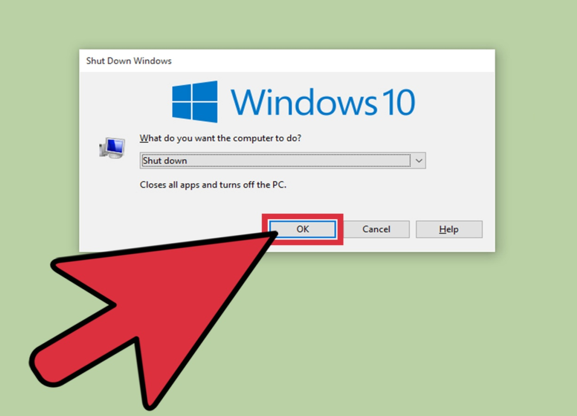
SWITCHING OFF A COMPUTER
- There are procedures that has to be followed when shutting down the computer.
- close all opened programs
- click the start button on the task bar
- click on the shut down or turn off the computer
- from the dialog box that appears, select shut down or turn off the computer
- then click OK
The help facility
Use the help facility
Computer handling
Information and Computer Studies Form 1
Computer handling
Information and Computer Studies Form 1
Computer handling is sometimes called computer maintenance. Computer handling is the process of caring the computer and its accessories so that it can perform its work properly.
Backup devices
Types of backup devices
Backup refers to the process of making copies of data or data files to use in the event the original data or data files are lost or destroyed. Secondarily, a backup may refer to making copies for historical purposes, such as for longitudinal studies, statistics or for historical records or to meet the requirements of a data retention policy. Many applications, especially in a Windows environment, produce backup files using the .BAK file extension.
1. Keep It in the Cloud
Big players in the cloud storage field include:
- iCloud for Apple product users includes 5GB of free storage. Windows users can also sync their files with iCloud Drive.
- Google Drive is integrated with Android devices. Windows and Mac users can download a desktop application for drag-and-drop capability. The service includes 15GB of free storage.
- OneDrive is accessible through Windows 10's file explorer. Android and iOS devices access the site through an app. Mac users can download an app from the Mac App Store. OneDrive includes 5GB of free storage space.
- Dropbox has been around for a while. It offers personal and business subscriptions. The personal account includes 2GB of free data.
Advantages
- Free space and affordable upgrades
- Data secured in a remote location. You can access it anywhere you can reach the internet
- Secure transmission of data
Disadvantages
- Capacity limitations for free storage
- The risk of a site closing
- Must reach the internet to access your backup files
2. Save It to an External Hard Drive
External and portable hard drives connect to one computer at a time. They are usually wired devices, although some have wireless capabilities. Many external and portable drives now come with USB 3.0 capabilities, but your computer must also have USB 3.0 to take advantage of this feature.
Advantages
- Easy to use
- With software, you can schedule backups and never worry about them again
Disadvantages
- Hard disk drives run the risk of failure
- Solid-state drives have less risk but can be expensive for large-capacity drives
- Should be stored off-site in case of fire or another catastrophe
3. Burn It to a CD, DVD, or Blu-ray Disc
Once the gold standard in data backup, burning data to CDs, DVDs, or Blu-ray discs is now a much less popular, albeit still reliable, a method of data backup.
Advantages:-
- Drive failure not an issue
- Can store safely in a second location (safety deposit box, for example)
Disadvantages:-
- Time-consuming to manage the backups
- Assumes future of CD-capable technology. Some equipment no longer includes a drive for this purpose.
- Can get pricey for large amounts of data as you continue to buy additional discs.
4. Put It on a USB Flash Drive
USB flash drives are like tiny solid state drives that you can carry in your pocket. While they were once expensive and available only in small capacities, their prices have dropped and size increased.
Advantages,
- Affordable
- Portable
- Available in USB 3.0
Disadvantages,
- Easy to misplace (not recommended for long-term storage of crucial information because of this risk)
- Not always durable
- Capacity limitations
5. Save It to a NAS Device
A NAS (network attached storage) is a server that’s dedicated to saving data. It can operate either wired or wirelessly—depending on the drive and your computer— and once configured, it can display as simply another drive on your computer.
Advantages;
- Can back up several computers at once
- Can be set for automatic backup
Disadvantages;
- Pricey
- Possibility of drive failure
Format disk
Format disk
Backup data
Backup data
Computer handling
Information and Computer Studies Form 1
Computer handling is sometimes called computer maintenance. Computer handling is the process of caring the computer and its accessories so that it can perform its work properly.
Computer Is the process of preventing computer data loss
The following are security measures for protecting computer data;
- The use of password or encryption
- Installing ant-virus
- Avoid downloading free games
- Shopping on safe or protected websites
- Avoid sharing password
The concept of virus
Explain the concept of virus
A virus is a program that infect an executable file
EFFECTS OF VIRUS
- File function differently than before
- May be only displaying a began messages on the monitor
- May be deleting some or all file on the user's hard drive
- May be altering data filesnote
WORM
- This is a malicious program that copies itself
DIFFERENCES BETWEEN A WORM AND A VIRUS
| VIRUS | WORM |
| Requires human action to propagate it, it never copies itself | Copies itself automatically |
| Infects an executable file | stand alone program |
TROJAN HORSE
- This is a deceptively labeled program that contains at and that harms the user.
- Note: Trojan horse does not replicate , that distinguishes it from viruses and worms.
EFFECTS OF TROJAN HORSE
- TROJAN HORSE allows a hacker to remotely control the victim's computer
- Perhaps it collects the password and credit card number and send them to the hacker
- Perhaps it launches deprival service attacks on websites.
A LOGIC BOMB
- This is a program that detonates when some events occurs. the detonated program might stop working( i.e. go to an infinite loop) crash the computer. release a virus, and delete data files or any of many other harmful possibilities.
TIME BOMB
- A time bomb is a type of logic bomb in which the program detonates when the computer clock reaches some target date.
SPYWARE
- This is a malicious software that hides on a computer without a user knowledge.
ADWARE
- This is malicious software that installed on your computer by internet advertising that allow them to inundate you with pop up messages.
The ant-virus programs
Use ant-virus programs
Antivirus software is a type of utility used for scanning and removing viruses from your computer
OR
Antivirus software is a class of program designed to prevent, detect and remove malware infections on individual computing devices, networks and IT systems.
While many types of antivirus (or "anti-virus") programs exist, their primary purpose is to protect computers from viruses and remove any viruses that are found.
How antivirus software works
Antivirus software typically runs as a background process, scanning computers, servers or mobile devices to detect and restrict the spread of malware. Many antivirus software programs include real-time threat detection and protection to guard against potential vulnerabilities as they happen, as well as system scans that monitor device and system files looking for possible risks.
Antivirus software usually performs these basic functions:
- Scanning directories or specific files for known malicious patterns indicating the presence of malicious software;
- Allowing users to schedule scans so they run automatically;
- Allowing users to initiate new scans at any time; and
- Removing any malicious software it detects. Some antivirus software programs do this automatically in the background, while others notify users of infections and ask them if they want to clean the files.
Types of antivirus programs
Antivirus software is distributed in a number of forms, including stand-alone antivirus scanners and internet security suites that offer antivirus protection, along with firewalls, privacy controls and other security protections.
Some antivirus software vendors offer basic versions of their products at no charge. These free versions generally offer basic antivirus and spyware protection, but more advanced features and protections are usually available only to paying customers.
While some operating systems are targeted more frequently by virus developers, antivirus software is available for most OSes:
- Windows antivirus software. Most antivirus software vendors offer several levels of Windows products at different price points, starting with free versions offering only basic protection. Users must start scans and updates manually and typically free versions of antivirus software won't protect against links to malicious websites or malicious attachments in emails. Premium versions of antivirus software often include suites of endpoint security tools that may provide secure online storage, ad blockers and file encryption. Since 2004, Microsoft has been offering some kind of free antivirus software as part of the Windows operating system itself, generally under the name Windows Defender, though the software was mostly limited to detecting spyware prior to 2006.
- macOS antivirus software. Although macOS viruses exist, they're less common than Windows viruses, so antivirus products for macOS are less standardized than those for Windows. There are a number of free and paid products available, providing on-demand tools to protect against potential malware threats through full-system malware scans and the ability to sift through specific email threads, attachments and various web activities.
- Android antivirus software. Android is the world's most popular mobile operating system and is installed on more mobile devices than any other OS. Because most mobile malware targets Android, experts recommend all Android device users install antivirus software on their devices. Vendors offer a variety of basic free and paid premium versions of their Android antivirus software including anti-theft and remote-locating features. Some run automatic scans and actively try to stop malicious web pages and files from being opened or downloaded.
Virus detection techniques
Antivirus software uses a variety of virus detection techniques.
Originally, antivirus software depended on signature-based detection to flag malicious software. Antivirus programs depend on stored virus signatures -- unique strings of data that are characteristic of known malware. The antivirus software uses these signatures to identify when it encounters viruses that have already been identified and analyzed by security experts.
- A virus signature (also known as a virus definition) is a file or multiple files that are downloaded by a security program to identify a computer virus.
The effects of dust, liquid, temperature and humidity on a computer and accessories
Explain the effects of dust, liquid, temperature and humidity on a computer and accessories
Keeping a clean environment in your home or office is good for the performance and longevity of your computer. Environmental factors like dust, smoke and spilled liquids can damage your computer in ways that you may have not considered. Let’s take a look at a few of these dangers in your workspace.
Dust: Most computers are designed to use a combination of vents and cooling fans to keep the internal components operating a safe temperature. While dust on the outside of your computer case can’t cause much damage, once dust is drawn into those vents they can begin to clog. When the vents clog the fans have to work harder to maintain a safe temperature. Additionally, dust that settles on the inside of your computer has unwanted insulating properties and can blocking proper airflow. Like any mechanical part, the harder those internal cooling fans work the faster they will break. If the fans are unable to maintain a safe temperature, other parts of your computer like the memory, processor or power supply can overheat and stop working correctly.
Smoke: Believe it or not, cigarette smoke can be bad for your computer. Smoke of all kinds contains particulate matter that be drawn in your computer just like dust. The sticky tar in smoke that damages your lungs can also build up on the internal parts of your computer, putting your computer at risk for overheating or even short circuits of the delicate electrical components. Naturally this doesn’t just apply to cigarette smoke. If your computer is next to a wood stove, an ashtray or a fireplace you may want to consider relocating it to another location.
Cold Temperatures, cold temperatures are not as dangerous to a computer as overheating is, but problems can still occurs. If computers get too cold when left powered off, their components can be damaged upon boot because the electricity heats the circuit. As electricity travels through an circuit, it heats rapidly and causes the matter to expand. Rapid expansion, when close to matter that remains the same size, it distorts it. This can bend or break component.s Therefore, you should let computers previously stored in cold temperatures heat to room temperature before turning them on. Laptop displays are especially vulnerable to cold weather; they have liquid crystal that can freeze. Therefore, the laptop needs to be at or close to room temperature before powering up
Overheating, laptop and desktop computers are vulnerable to overheating. The electronic components operate at a specific current induced by a low voltage. The sensitivity of the components means that even a small fluctuation in voltage is dangerous. Excessive heat lowers the electrical resistance of objects, therefore increasing the current. In addition, slowdown is a result of overheating. Components can shut down when overheated and the motherboard temperature sensor instructs hardware such as the hard drive and processor to slow down.
Humidity, during normal use, humidity doesn't pose as likely a threat as heat. Everyone knows that electronics and water don't mix, but as long as you don't spill liquid into your computer, humidity is unlikely to break it. That said, both extremely humid and extremely dry climates can cause problems.
Temperature Limits, computer components have differing heat safety thresholds, often listed in the part's specifications. The most likely part to overheat, the CPU, automatically throttles its speed if it approaches its maximum temperature. If it continues to overheat, it triggers a failsafe which shuts down the computer rather than risk permanent damage. Maximum temperatures -- sometimes called if you're concerned about overheating.
Computer Evolution
Information and Computer Studies Form 1
The historical background of development of computer
Explain historical background of development of computer
Actually speaking electronic data processing does not go back more than just half a centaury i.e. they are in existence merely from early 1940’s. In early days when our ancestor used to reside in cave the counting was a problem. Still it is stated becoming difficult. When they started using stone to count their animals or the possession they never knew that this day will lead to a computer of today. People today started following a set of procedure to perform calculation with these stones, which later led to creation of a digital counting device, which was the predecessor the first calculating device invented, was know as ABACUS.
DEVELOPMENT OF COMPUTER
- Calculating machine: The first calculating device was called abacus which was discovered by Egyptian and Chinese people.
- Napier's bones (1617's): This was the calculating device invented by John Napier for calculating products and quotients of numbers.
- Slide rule (1970's): This was the first analogy computer.
- Pascal's adding and subtraction machine: At the age of 19 years Pascal invented a machine that they can add and subtract large numbers.
- Leibniz multiplication and division Machine: The first mechanical calculator capable of dividing and multiplying was invented by Leibniz
- Babbage's analytical Engine: In 1960's electrical calculator that uses vacuum tubes to perform arithmetic operation was discovered later on vacuum tubes replaced by transistors as a result the size of calculator became very small.
- Mechanical Electrical Calculator: In 1960's electrical calculator that uses vacuum tubes to perform arithmetic operation was discovered later on vacuum tubes replaced by transistors as a result the size of calculator become very small.
Early computer devices
Identify early computer devices
THE EARLY START
- The computers have been around for quite a few years. the first computer was brought around 1951 by business firm. From there computers have changed rapidly many people cannot keep up with changes. These changes have occurred so rapidly that many people do not know our modern computer got its start
THE FIRST COMPUTING MACHINES " COMPUTERS"
- Since the ancient times, people have had ways to deal with data and numbers. Early people tied knots in rope and carved marks on clay tablets to keep track of livestock and trade.some people considered the 5000 year old ABACUS a frame with beads strung on wires to be the first true computing aid as trade and tax system grow in complexity people saw that faster reliable tools were needed for doing math and keeping records.
- In the mid 1600's Blaine Pascal and his father who was a tax officer himself were working on taxes for the French government in Paris. The two spent hours figuring and performing taxes that each citizen owed. Young blasé decided in 1642 to build an adding and subtraction machine that could side in such a tedious and time consuming process.The machine made by Blase had a set of eight gears that worked together much like an odometer keeps track of car's mileage. His machine encountered many problems. For one it was breaking down.Second the machine was slow and extremely costly. And third, people were afraid to use the machine thinking it might replace their jobs. Pascal later became famous for math and philosophy, but he is still remembered for his role in computer technology. In his honor there is a computer language named Paschal.
- The next big step for computer arrived in the 1830's when Charles Babbage decided to build a machine to help him complete and print mathematical tables. Babbage was a mathematician who taught at Cambridge University in England. He began planning his calculating machine calling it an analytical Engine. The idea for this machine was amazing like the computer we know today. It was to read a program from punched cards, figure and store the answers to different problems and print the answer on paper. Babbage died before he could complete the machine. However because of his remarkable ideas and work , Babbage is known as the Father of Computers.The next huge step for computers comes when Herman Hollerith entered a contest given by the US census Bureau. The contest was to see who could build a machine that would count and record information faster. Hollerith, a young man working for the bureau built machine called Tabulating Machine that read and sorted data from the punched cards . The holes punched in the cards matched each person's answers to questions. For example , married single and divorces were answers on the card. The tabulator read the punched cards as they passed over tiny brushes. Each time a brush found a hole it completed an electrical circuit. This caused special counting dials to increase the data for that answer. Thanks to Hollerith's machine instead of taking seven and a half years to count the census information it only took three years , even with 13 million more people since the last census. Happy with his success, Hollerith formed the Tabulating Machine company become the International business Machines corporation, better known today as IBM.
THE FIRST ELECTRIC POWERED COMPUTER
- What is considered to be the first computer was made in 1944 by Harvard's Professor Howard Aiken. The Mark I computer was very much like the design of Charles Babbage having mainly mechanical parts, but with some electronic parts. His machine was designed to be programmed to do many computer jobs. This is all purpose machine is what we now know as the PC or personal Computer. The Mark I was the first computer financed by IBM and was about 50 feet long and 8 feet tall. It used mechanical switches to open and close its electric circuits. It contained over 500 miles of wire and 750,000 parts.
THE FIRST OF ALL ELECTRONIC COMPUTER
- The first all electronic computer was the ENIAC (Electronic Numerical Integrator and Computer). ENIAC was a general purpose digital computer built in 4946 by J. Prosper Eckert and John Mushily. The ENIAC contained over 18,000 vacuum tubes ( used instead of mechanical switches of the Mark I) and was 1000 times faster than the Mark I. In twenty seconds , ENIAC could do a math problem that would have taken 40 hours for one person to finish. The ENIAC was built the time of World War II had as its first job to calculate the feasibility of a design for the hydrogen bomb. The ENIAC was 100 feet long and 10 feet tall.
MORE MODERN COMPUTERS
- A more modern type computer began with John Von Neumann's development of software written in binary code. It was Von Neumann who began the practice of storing data and instructions in binary code and initiated the use of memory to store data , as well as programs. A computer called EDVAC ( Electronic Discrete Variable Computer) was built using binary code in 1950. Before the EDVAC , computers like the ENIAC could do only one task then they had to be rewired to perform a deferent task or program. The EDVAC'S concept of storing different programs on punched cards instead of rewriting computers led to the computers that we know today.While the modern computer is far better and faster than the EDVAC of its time, computers of today would not have been possible with the knowledge and work of many great mentors and pioneers.
Computer Evolution
Information and Computer Studies Form 1
A generation is a state of improvement in the development of a product It also refers to different advancement of computer technology. with each each new generation, the circuit has gotten smaller and more advanced than the previous generation before it . as a result of the miniaturisation, speed power and memory of computers has proportionally increased . New discoveries are constantly being developed that affect the way we live work and play
The stages of computer generations
Identify the stages of Computer generations
THE FIRST GENERATION: 1946 - 1958 ( THE VACUUM TUBE YEARS)
- The first computer used vacuum tubes for circuitry and magnetic drums for memory and was often enormous taking up the entire room and relied on machine language to perform operation.
- EXAMPLES:
- UNIVAC ( Universal Automatic Computer) first commercial computer
- ENIAC (Electronic Automatic Computer)
- EDVAC ( Electronic Discreet Variable Automatic Computer}
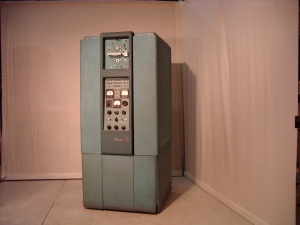
| Advantages | Disadvantages |
|
|
Characteristics of the first generation computers'
- It used vacuum tubes
- Used magnetic drums for memory
- Were very large taking up entire room
- Computer relied on machine language to perform operation
- Were very expensive to operate
- Output was displayed on printouts
- Large AC needed
- High electricity consumption
THE SECOND GENERATION: 1959 - 1964( THE ERA OF THE TRANSISTORS)
- The transistors computer did not last as long as the vacuum tube computer lasted, but it was no less important in the advancement of computer technology. In 1947 three scientists, John Bardeen, William Shockley and Walter Brattain working at AT and T's Bell Labs invested what would replace the vacuum tube in that it can be used to relay and switch electronic signals.There were obvious differences between the transistor and the vacuum tube. The transistor was faster more reliable , smaller and much cheaper to build than vacuum tube. One transistor replaced the equivalent of 40 vacuum tubes. These transistors were made of solid material, some of which is silicon , an abundant element found in beach sand glass. Therefore they were very cheap to produce.Transistors were found to conduct electricity faster and better than vacuum tubes .They were also much smaller and give off virtually no heat compared to vacuum tubes. Their use marked a new beginning for the computer. Without this invention , space travel in the 1960's would not have been possible. However a new invention would even further advance our ability to use computers.
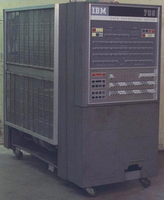
| Advantages | Disadvantages |
|
|
THE THIRD GENERATION : 1964-1970 ( INTEGRATED CIRCUITS -MANIATURIZING THE COMPUTER)
- Transistors were a tremendous breakthrough in advancing the computer. However no one could predict that thousands even now millions of transistors (circuits) could be compacted in such a small space. The integrated circuit or as it is sometimes referred to as semi conductor chip, packs a huge number of transistors onto a single wafer of silicon. Robert Noyce of Fairchild corporation and Jack Kilby of Texas instruments independently discovered the amazing attributes of integrated circuits. Placing such large number of transistors on a single chip vastly increased the power of a single computer and lowered its cost considerably.Since the invention of integrated circuits the number of transistor that can be placed on a single chip has doubled every two years, shrinking both the size and cost of computers even further enhancing its power. Most electronic devices of bakelite of Fiberglass that have electrical connections etched into them sometimes called a MOTHER BOARD. These third generation computers could carry out instructions in billionths of a second.The size of these machines dropped to the size of small file cabinets yet the single biggest advancement in the computer era was yet to be discovered.
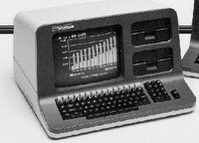
| Advantages | Disadvantages |
|
|
THE FOURTH GENERATION: 1971- TODAY (MTHE MICROPROCESSOR)
- This generation can be characterized by both the jump to monolithic integrated circuits ( millions of transistors put onto one integrated circuit chip) and invention of the microprocessor ( a single chip that could do all the processing of a full-scale computer). By putting millions of transistors onto one single chip more calculation and faster speeds could be reached by computers. Because electricity travels about a foot in a billionth of a second, the smaller the distance the greater the speed of computers and its significant impact on our lives is invention of the microprocessor. Ted Hoff , invented a chip the size of a pencil eraser that could do all the computing and logic work of a computer. The microprocessor was made to be used in calculators not computers. It led however to the invention of personal computers, or microcomputers. It wasn't until the 1970's that people began buying computers was the Altair 8800 computer kit. In 1975 you could purchase this kit and put it together to make your own personal computer
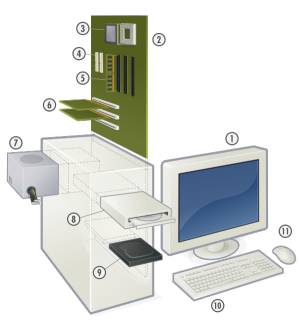
| Advantages | Disadvantages |
|
|
FIFTH GENERATIONS COMPUTERS (ARTIFICIAL INTELLIGENCE)
- This generation computing device based on artificial intelligence are still in development, through there are some application such as voice recognition that are being used today.
- used in parallel processing
- used super conductors
- used in speech recognition
- used in intelligent robot
The different types of computers
Identify different types of computers
Depending on the processing and size of the computer they have been classified under various types:
A) TYPES OF COMPUTER BASED ON THE OPERATIONAL PRINCIPLE OF COMPUTER
- Analogue computer
- Digital computer
- Hybrid computer
1. ANALOG COMPUTER
- These are computers that use analogy signals only. These are different from a digital computer because an analogy computer can perform several mathematical operations simultaneously.Arithmetic and logical operations are done by measuring physical changes i.e. temperatures or pressure.
2. DIGITAL COMPUTER
- These are computers that use digital signals only. Digital computers recognized data by counting discrete of 0's and 1's
3. HYBRID COMPUTER
- These computers are combination of both analog and digital computers. In this type of computer the digital segments perform process control by conversion of analog to digital ones.
B) TYPES OF COMPUTERS BASED ON THE SIZE OF COMPUTERS
- Microcomputer
- Mini Computer
- Mainframe Computer
- Super Computer
1. MICROCOMPUTER
- A microcomputer is a microprocessor and its central processing unit is known as a microcomputer.They don't occupy space as much as mainframes. When supplemented with a keyboard and a mouse microcomputer can be regarded as a Personal computer.example Desktop, laptop, personal digital assistant (PDA's)
2. MINI COMPUTERS
- A min computer is a computer of a size intermediate between a microcomputer and a main frame. Typically microcomputers have been a stand-alone computer.
3. MAIN FRAME COMPUTERS
- Large organizations use mainframe for highly critical applications such as bulk data processing and ERP. Most of the mainframe computer has the capacities to host multiple operating systems and operate as a number of virtual machines and can this substitute for several small servers.
4. SUPER COMPUTERS
- The highly calculation intensive tasks can be effectively performed by means of super computers example: quantum ion physics, mechanics, weather forecasting and molecular theory is best studied by means of super computers.
C) TYPES OF COMPUTERS ACCORDING TO PURPOSE
- General purpose computers
- Special purpose computer
1. GENERAL PURPOSE COMPUTERS
- These are designed to perform a variety of tasks when loaded with appropriate programs
2.SPECIAL PURPOSE COMPUTERS
- These are designed to serve a specific purpose or to accomplish one particular task. These computers can perform no other task except the one they were meant to do. examples are: robots in manufacturing industries, calculators that carry out calculations only .and mobile phones for communication only
The difference between computer and other electronic devices
Differentiate a computer from other electronic devices